Articles by "Window Phones"

Showing posts with label Window Phones. Show all posts

Amazing Microsoft App You Are definitely missing

Hello and Good day..!!! PhonesGeekArena have come up again with another super blazing updates on Super Cool Apps ° Microsoft Have Amazing applications (Apps) of which Microsoft users do miss its amazing features and funs, applications can not be counted for its features but also for fun "Like they say - Life is Fun". Microsoft

(i). Telepath words (Web): Password Strength Checker

Image credits: MakeUseOf
~Microsoft’s Research keeps making some cool things that don’t get much attention. One of those is Telepath words, a tool to make secure passwords that can’t be easily cracked.
~Telepath words tries to predict the next character in your password by using a combination of common phrases, passwords, and password-selection behavior. So type in your password and see how many tick marks and crosses you get. The red crosses indicate guessable characters, so you might want to replace them to make memorable but unbreakable passwords .
~It’s a simple tool that will quickly give you an idea of your password’s strength and how hard it is to crack. Try to make something with all green tick marks so you’re assured that it’s difficult for hackers to break through .

(ii). Word Flow (iOS): The Great Windows Phone Keyboard, Now on iPhone
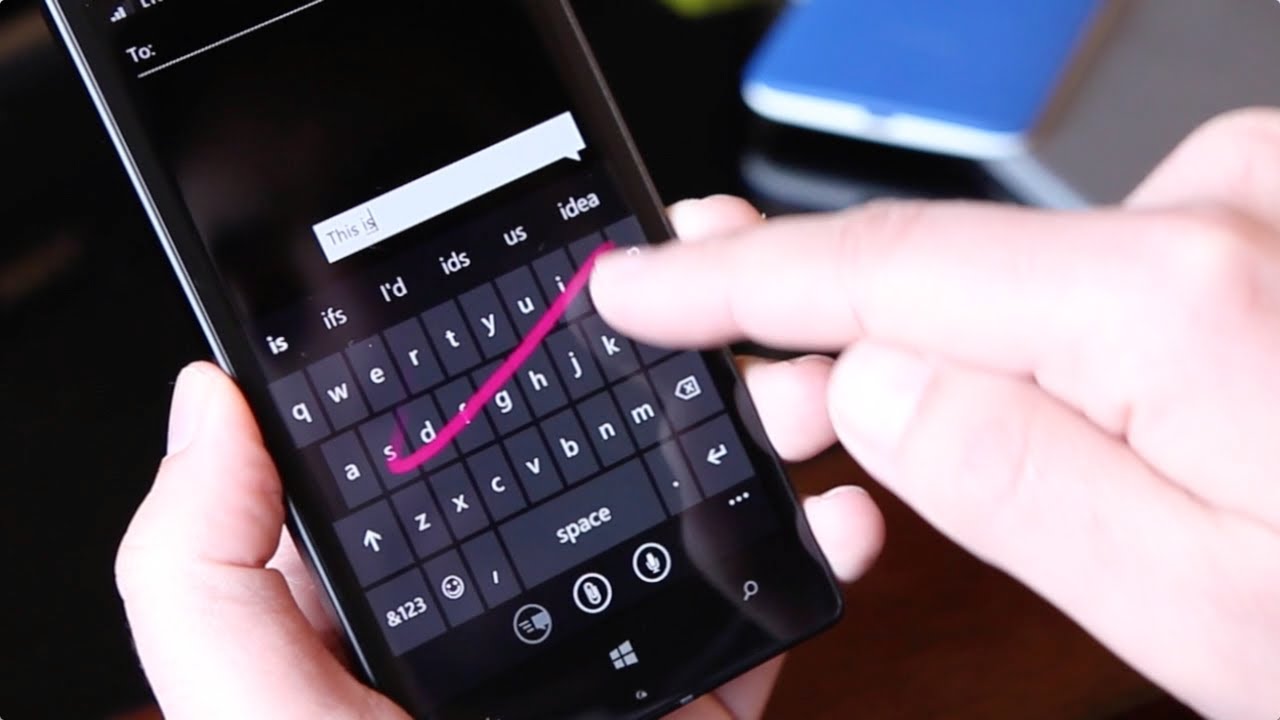
~ Microsoft may have made a few errors with Windows Phone, but it got one thing right: the brilliant keyboard. Its patented Word Flow technology is perfection, and made even better since the company bought popular third-party iOS keyboard Swift key.
~Word Flow is now available as a free download for iPhones. And it has some cool features to boot. Its one-handed “arc mode” pins the keyboard to the bottom-right corner, making it easier to type with one hand on the larger iPhone Plus handsets.
Microsoft has also packaged its search engine into the keyboard. Much like Google’s fantastic Gboard keyboard , you can search from within the app, add GIFs and emojis, share contacts, and much more. It’s as good as a keyboard can get.

Download👆 — Word Flow for iPhone (Free) 👆
📌Source: MakeUseOf.Com
Soft and hard reset on Netizenstech
Soft-reset on Window phones
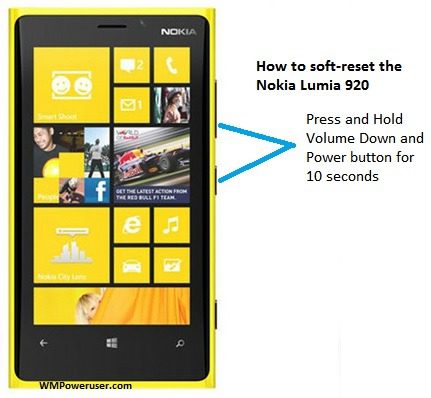
There are two different types of resets for your Windows Phone. Soft reset and hard reset (a.k.a. factory reset). There is a big difference between the two: The hard reset will return your phone to factory settings while the soft reset is more like an extended reboot.

Soft Reset


The soft reset is the same thing as pulling your battery (on devices where that is possible). This method will not remove anything at all from your phone and is completely safe to attempt in any problem situation.
You perform the soft reset by having your phone turned on. Then press and hold thevolume down and Powerbuttons until your phone vibrates and restarts. Note that you should not touch the device screen during the process (not even when the 'slide down to power off' prompt appears).
Example of situations where the soft reset should solve the problem:->.An app that usually starts won't start
->.The camera won't open
->.The device starts using too much battery
->.The device starts behaving oddly

Hard Reset


The hard reset will bring your phone back to factory settings, the same state as when the device was first turned on. All apps, messages, media, personal settings, etc will be removed from the phone. If backup is turned on under Settings, you can restore your apps and settings after performing a hard reset (as long as you initialize the phone with the same Microsoft Account).
Note that resetting your device will not remove any OS or firmware updates. You will remain on the same version of Windows Phone after the reset.
If you can turn on your device you can reset your phone under Settings:Settings > about > reset your phone

This procedure is described in more detailed in this official how-to article.
If your phone is unresponsive and you can't reach Settings, you may be able to reset your phone using the hardware buttons:
I.
Press and hold the volume down and Powerbuttons at the same time until you feel a vibration (about 10–15 seconds).
Ii.
When you feel the vibration, release the buttons, and then immediately press and hold thevolume downbutton until you see a large exclamation mark.
Iii.
Once the exclamation mark appears, press the following four buttons in this order:volume up,volume down,Power,volume down. Your phone should now reset and restart itself. (It might take a while for the reset to finish.)
The hard reset operation will take a while to complete and will show spinning gears before it reboots your device to factory settings. Usually it will finish within 30 minutes but can, in some rare cases, take up to a couple of hours. Some older Nokia Lumia handsets have a bug where a reset never seems to finish. If that should happen to you, check this wiki articlefor a solution.

Example of situations where the hard reset should be used:
->.The soft reset didn't solve the problem
->.You want to switch to another Microsoft Account
->.You want to reset a device that you will no longer use (this enables someone else to initialize the device with their own Microsoft Account)
->.You want to restore a backup

Source: Microsoft | Credit: Netizenstech Officials

Author Name

Contact Form

Name

Email *

Message *

Powered by Blogger.